For installers and DIYers in Belgium

Single-line and location diagrams, ready for inspection.

Start wherever you like: with the location diagram or with the single-line diagram. What you draw in one grows along in the other. CableCAD checks the AREI/RGIE as you go and produces the file the inspector expects.

No payment details needed to start. The example home opens without an account; what you change there is not saved.

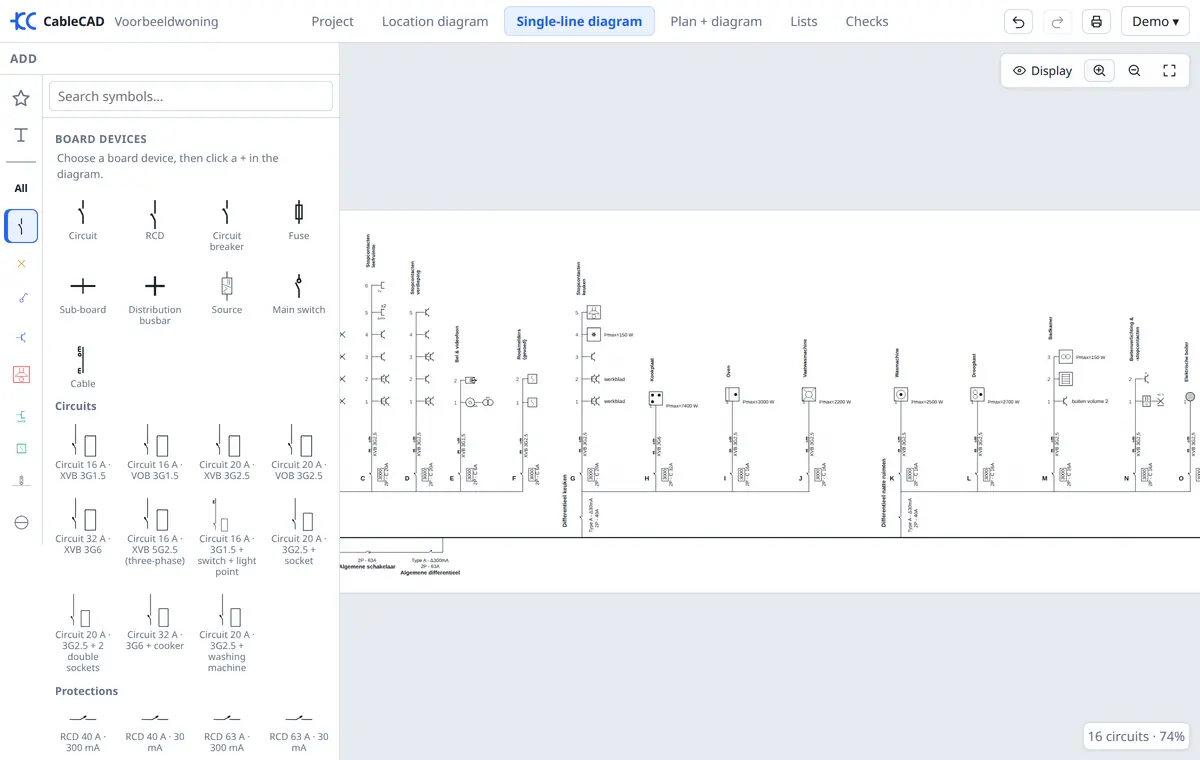
A single-line diagram in CableCAD

You choose how you work

Many programs only let you start from the single-line diagram, while on site you first walk through the house. In CableCAD you start where it makes sense to you, and switch whenever you like.

Start from the floor plan

Location diagram first

  1. Put the architect’s plan underneath, or draw the walls.
  2. Place sockets, switches and light points where they go.
  3. Assign them to circuits room by room: the single-line diagram builds itself from that, with a suggested breaker rating and cable.
Start from the board

Single-line diagram first

  1. Add the supply, RCDs and circuits to the diagram.
  2. Hang the devices under their circuit.
  3. Then drag them to their place on the floor plan in Plan + diagram.

Everything for the electrical file, in your browser

The single-line diagram you know

Place board devices, circuits and appliances straight into the drawing, or let the diagram grow from the location diagram. Circuit letters and sub-circuits number themselves, with the symbols and layout you know from the familiar Belgian programs.

Location diagram on your own floor plan

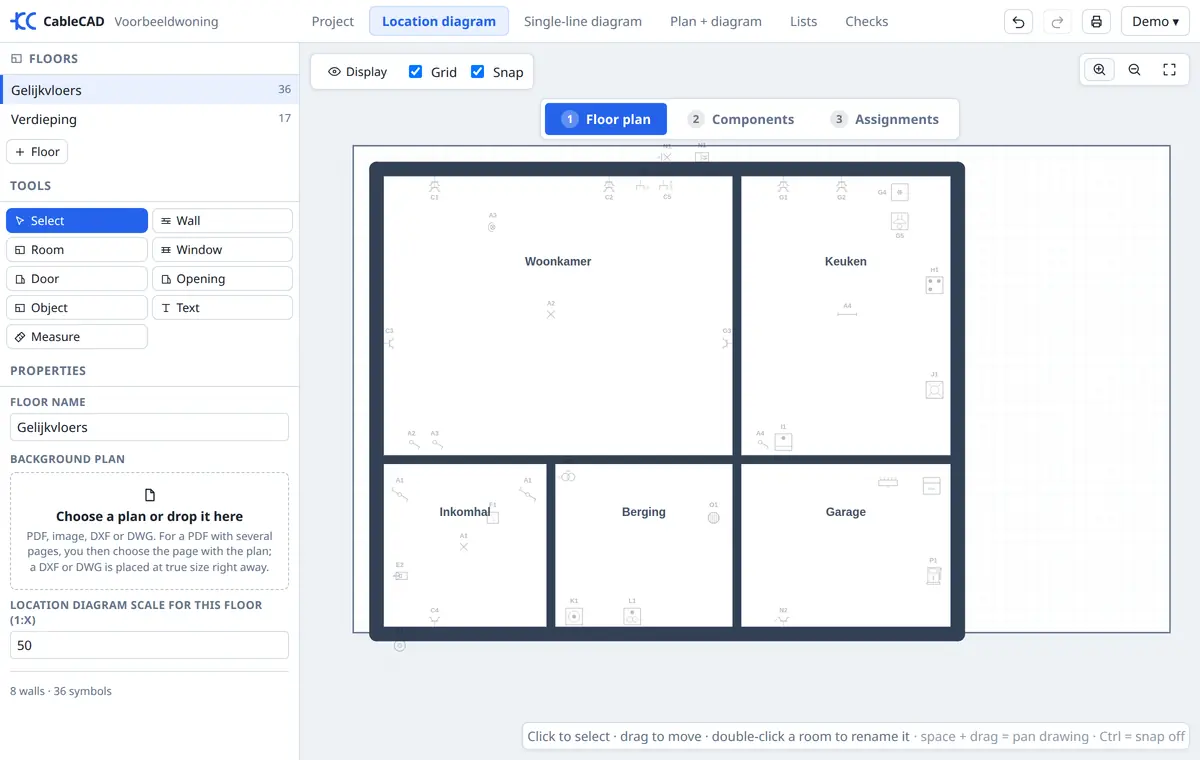
Put a PDF, photo, DXF or DWG under the plan, set it to scale and draw the walls — or let them be detected. Sockets and switches snap to the wall, and you create the circuits straight from the plan.

AREI/RGIE checks while you draw

Points per circuit, cross-section against breaker rating, RCDs, bathroom zones and old installation parts under section 8.2. Every finding points to its place in the diagram.

Inspection-ready file

Single-line diagram, location diagrams, circuit list and bill of materials in one PDF, with title block, logo and signatures. On A4 or A3, as large as possible or with your own sheet layout.

Bring your Trikker projects

Open a .trik file and carry on: diagram, floor plans, backgrounds, notes and home automation addresses come along.

On site, on the tablet

View the plan and the diagram on a tablet, mark what is in place and make changes on the spot. Everything is saved immediately.

A location diagram in CableCAD

Simple pricing

Start with 14 days free and unlimited. Then choose what suits you.

Trial

Free 14 days

  • Everything unlimited
  • Prints with a watermark
  • No payment details needed
Start for free

For DIYers

Per plan

€ 20 per plan incl. VAT

  • One installation, editable for as long as you like
  • Prints without a watermark
  • Buy another plan when you need one
Get started

Frequently asked questions

Is a diagram from CableCAD valid for the inspection?

CableCAD produces the single-line diagram and the location diagrams as the AREI/RGIE requires them, with the usual symbols and a title block. The checks in the app are an aid: the installer remains responsible, and only a recognised inspection body approves the installation.

Can I open my Trikker projects?

Yes. In your project overview, choose "Import a Trikker file" and select the .trik file. The diagram, the floor plans with their background and the notes come along.

What happens when my yearly plan ends?

Your plans stay where they are: you can view and print them. Creating new plans or editing existing ones is possible again as soon as you renew, or plan by plan with the DIY option.

How do I cancel my yearly plan?

In your account, under "Plan and invoices". You keep everything until the end of the paid year.

Where is my data stored?

Your projects are stored on our server in the European Union and saved with every change, including their history. You can delete your account and all projects at any time.

My question isn’t listed

Feel free to ask us through the contact form. If you have an account, you’ll also find "Help and questions" in the app, where you can see our reply. We usually answer within one working day.

Try it on your next job

Try it free for 14 days